
Install the Baza app on your phone
The official Baza app installs from the App Store on iPhone and from Google Play on Android. Baza is also a web app: it opens from your browser, at app.baza.fr, and adds to your home screen in a few taps.


Why add Baza to your home screen?
Once the icon has been added, Baza launches with a single tap, like a regular app — with no need to reopen your browser or retype the address.
- Your browser is enough: no installation is required to use Baza.
- Always the latest version: the app updates itself.
- A discreet icon named Baza, which you can remove at any time.
On Android, with Google Play
The simplest path on Android: install the official Baza app from Google Play. It is free, ad-free, and updates automatically.
Search for “Baza” on Google Play or open the official listing directly (publisher GELMIX, application id fr.baza.app), then tap “Install”.
On iPhone: the App Store, or your home screen
The simplest path on iPhone: install the official Baza app from the App Store. It is free, ad-free, and updates automatically.
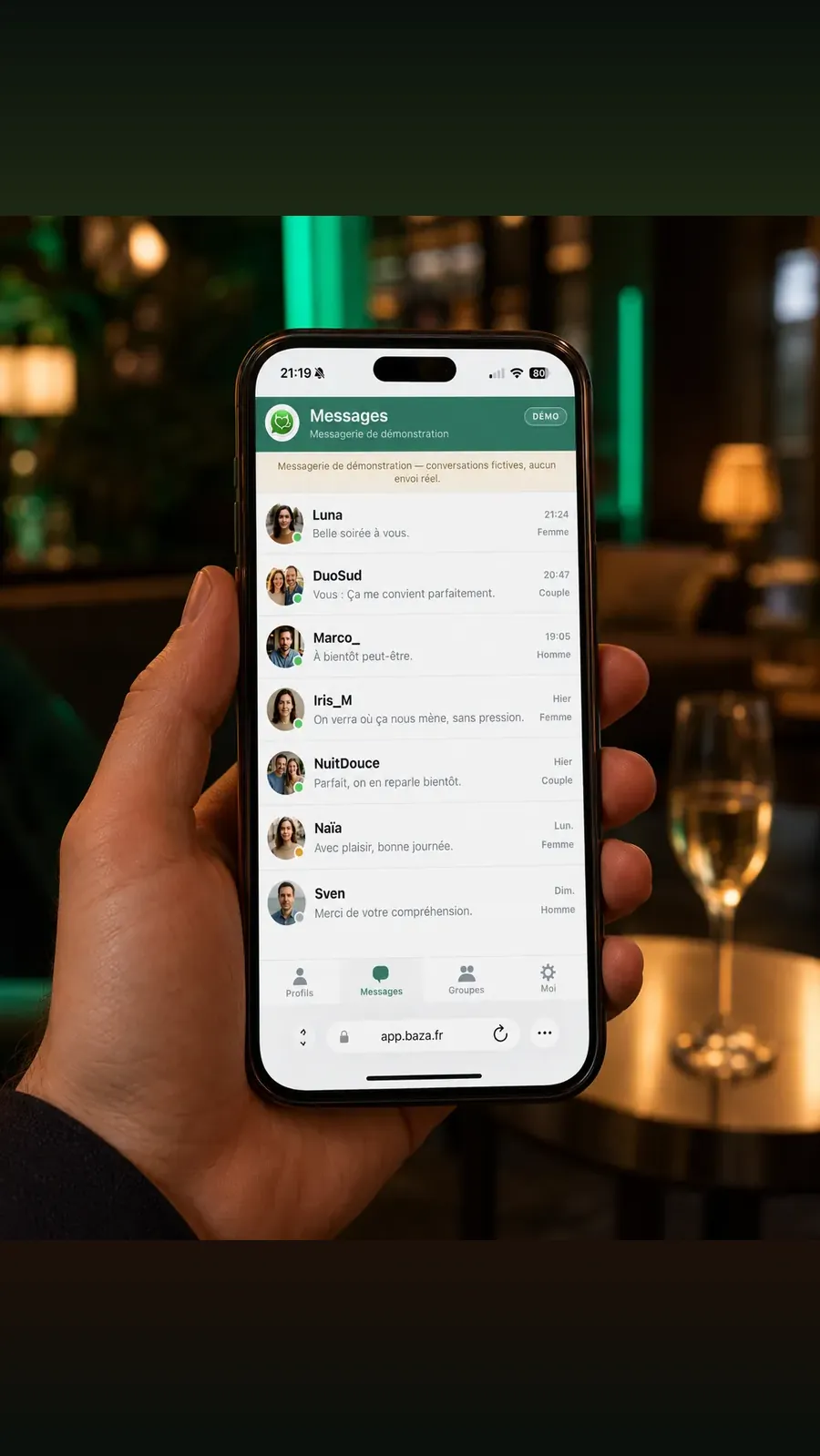
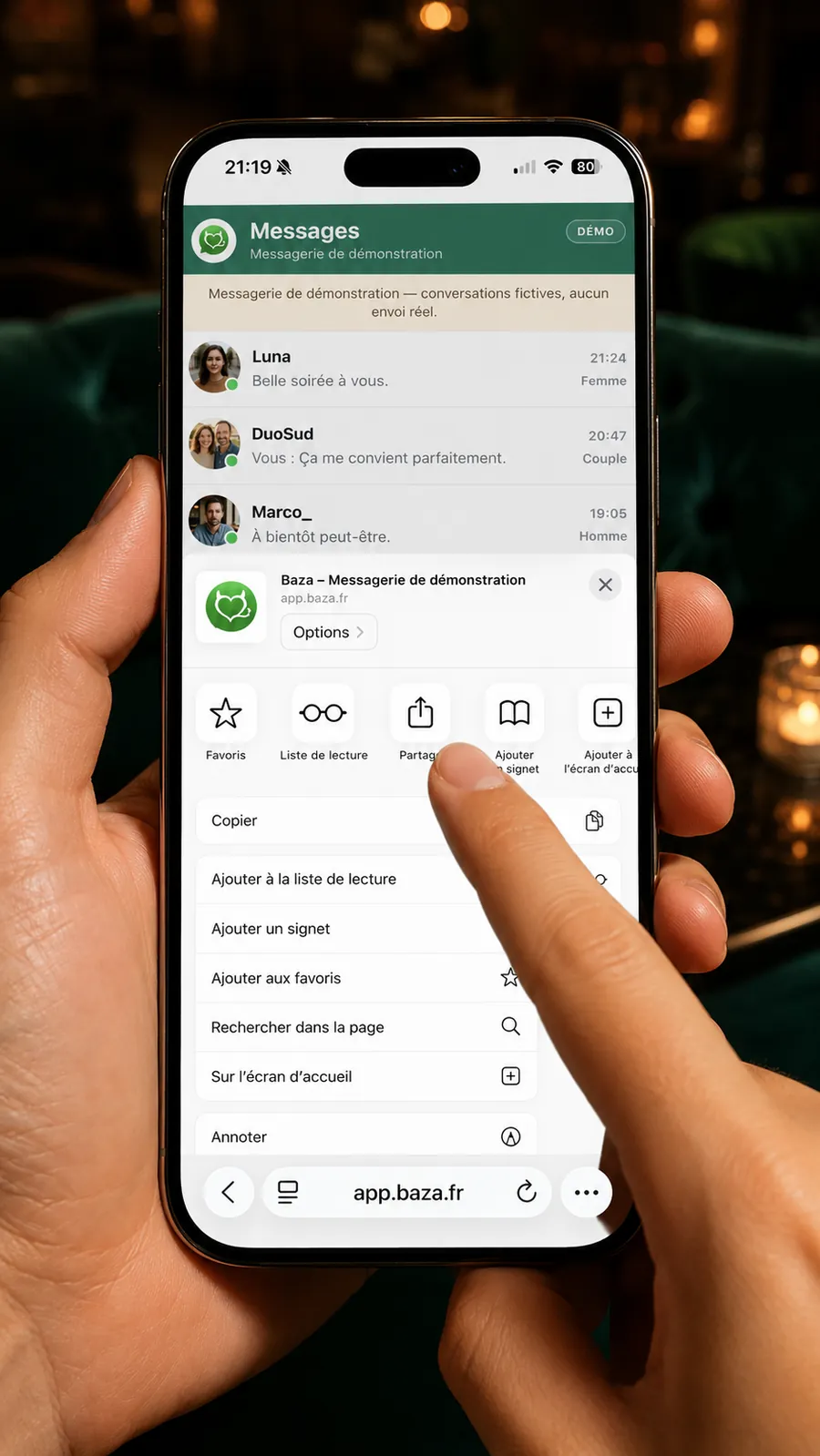
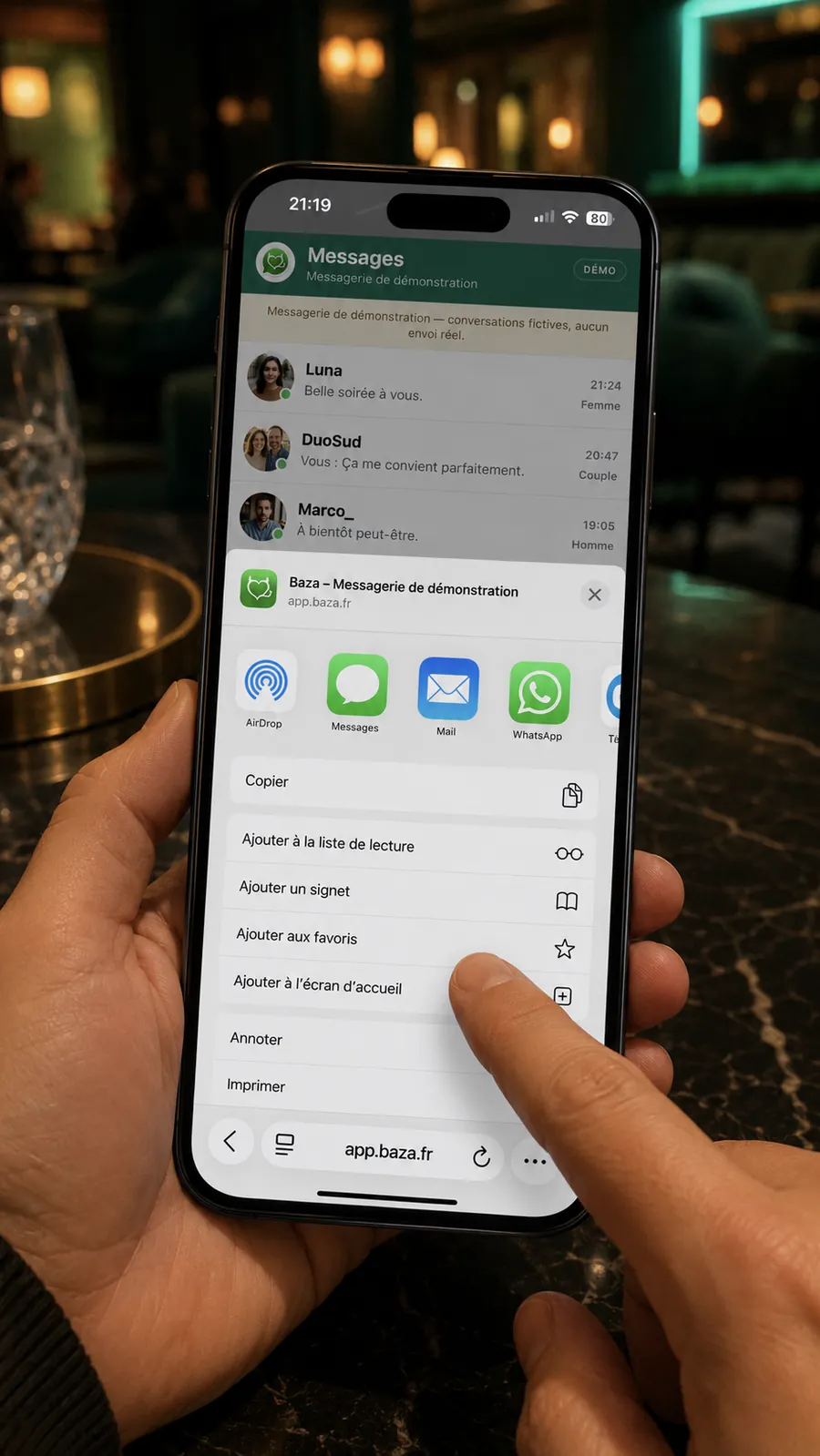
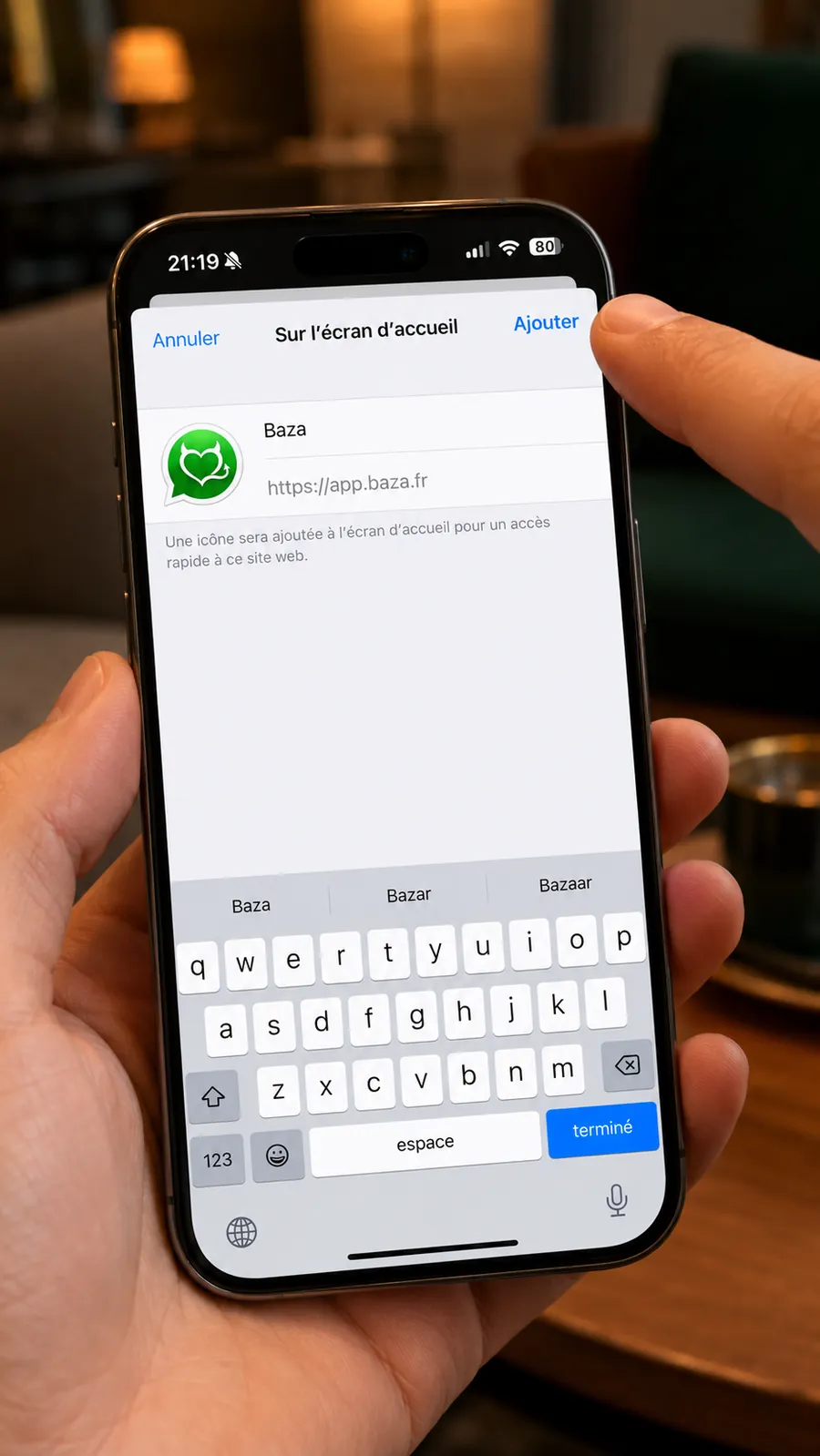
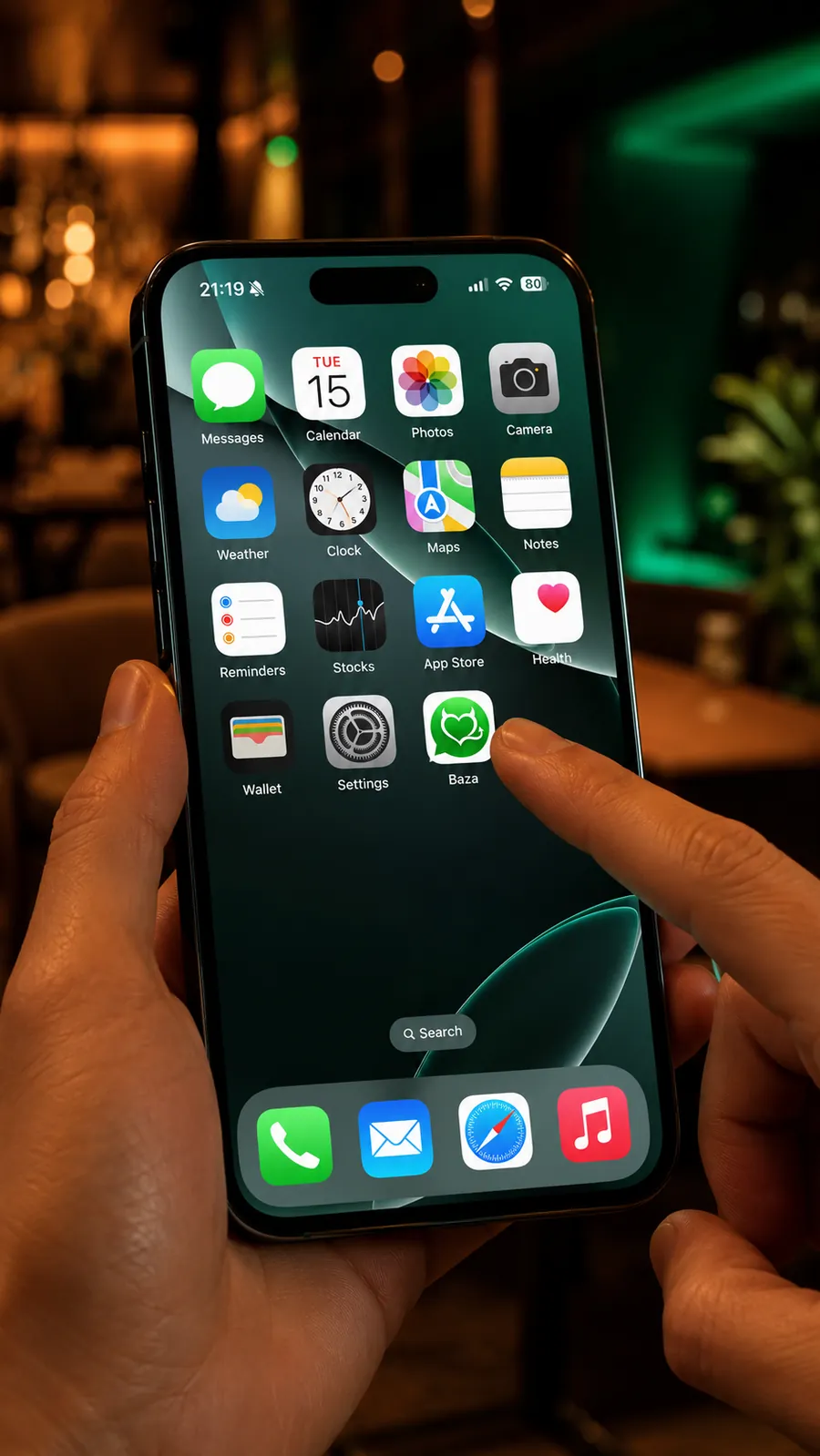
Prefer to stay in your browser? Adding to the home screen is done from Safari, in four steps:
- Open app.baza.fr in Safari.
- Tap the Share icon (the square with an arrow pointing up).
- Choose “Add to Home Screen” in the menu.
- Confirm with “Add”: the Baza icon appears on your home screen.
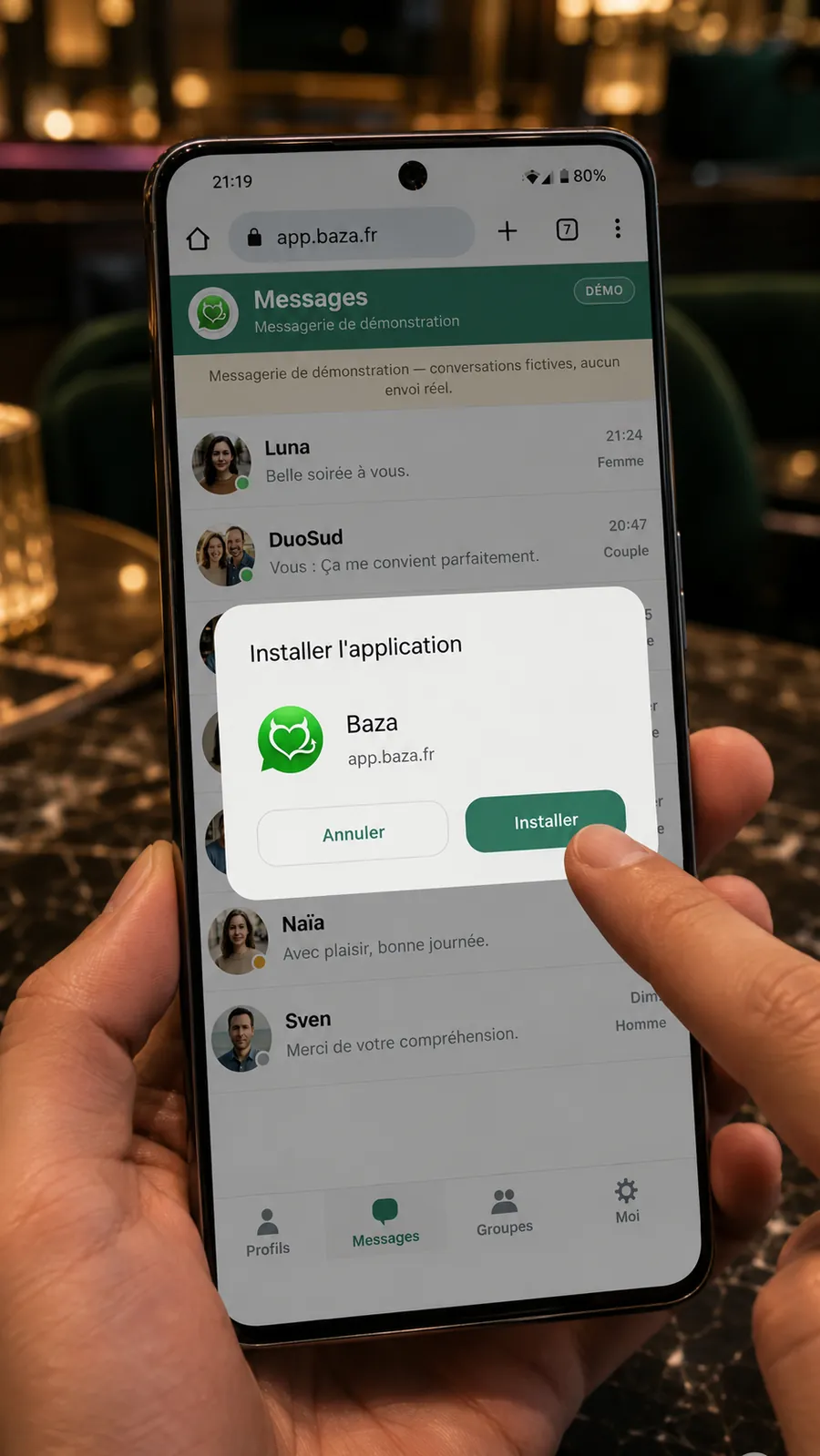
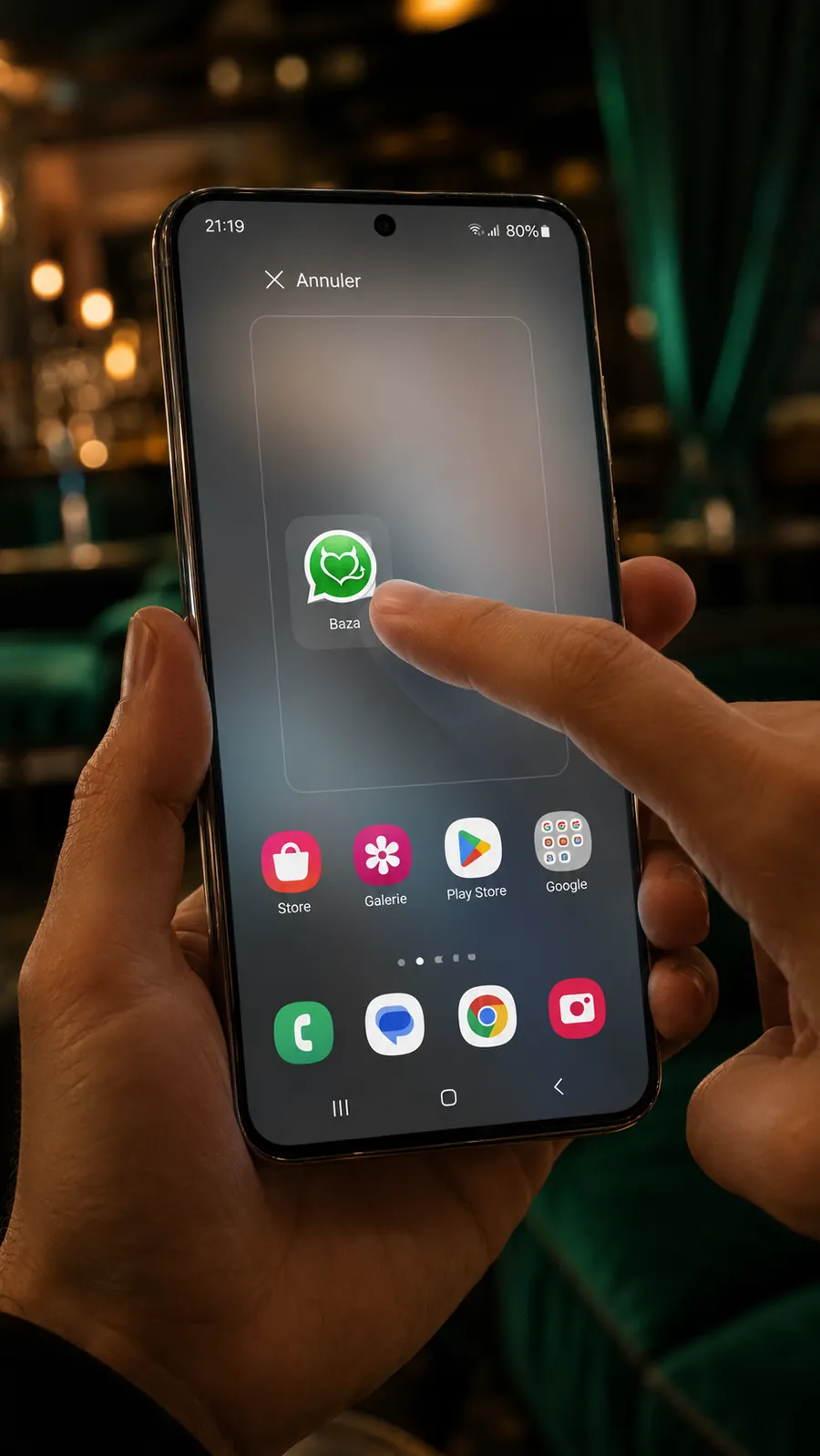
On Android, with Chrome
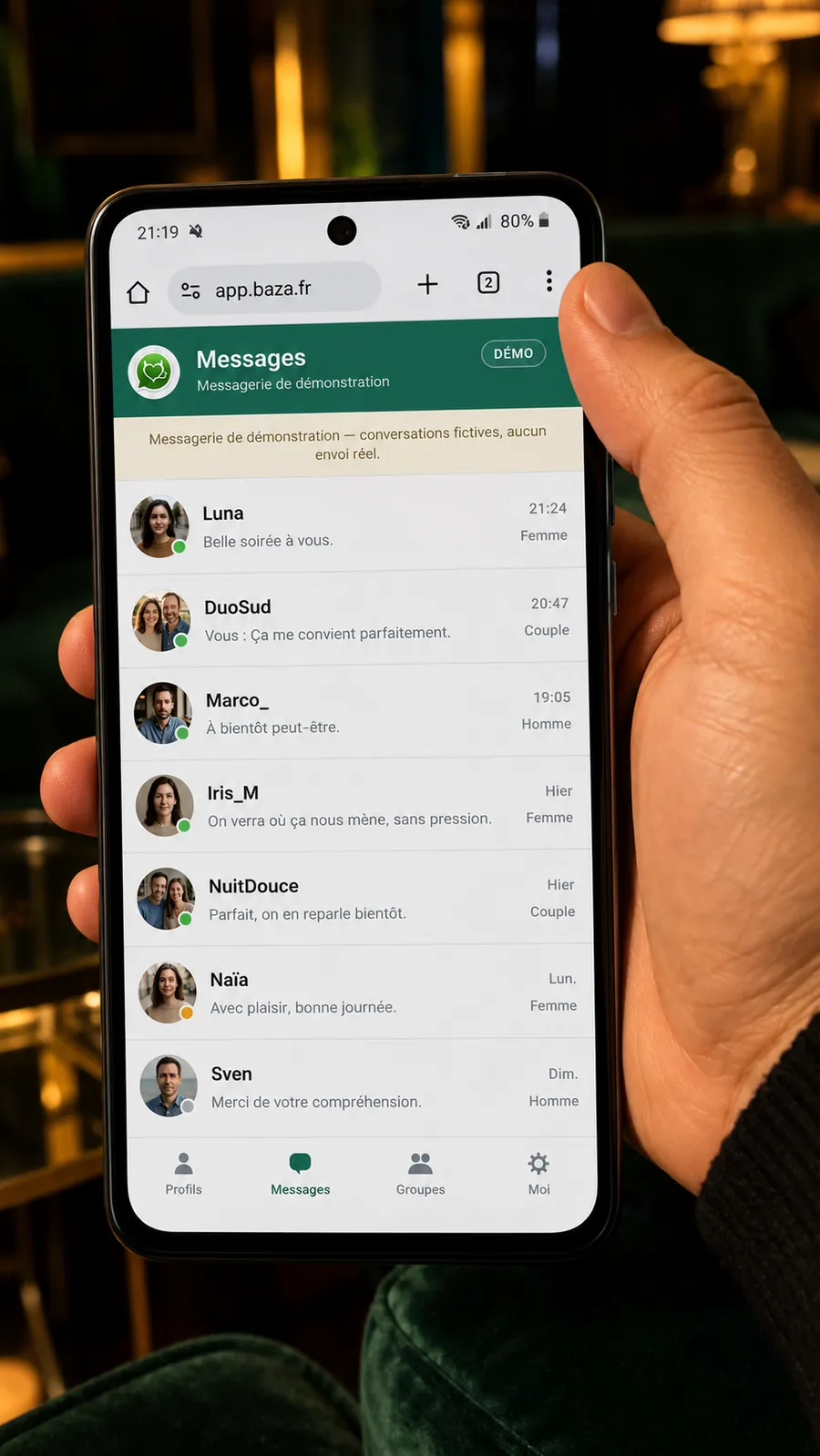
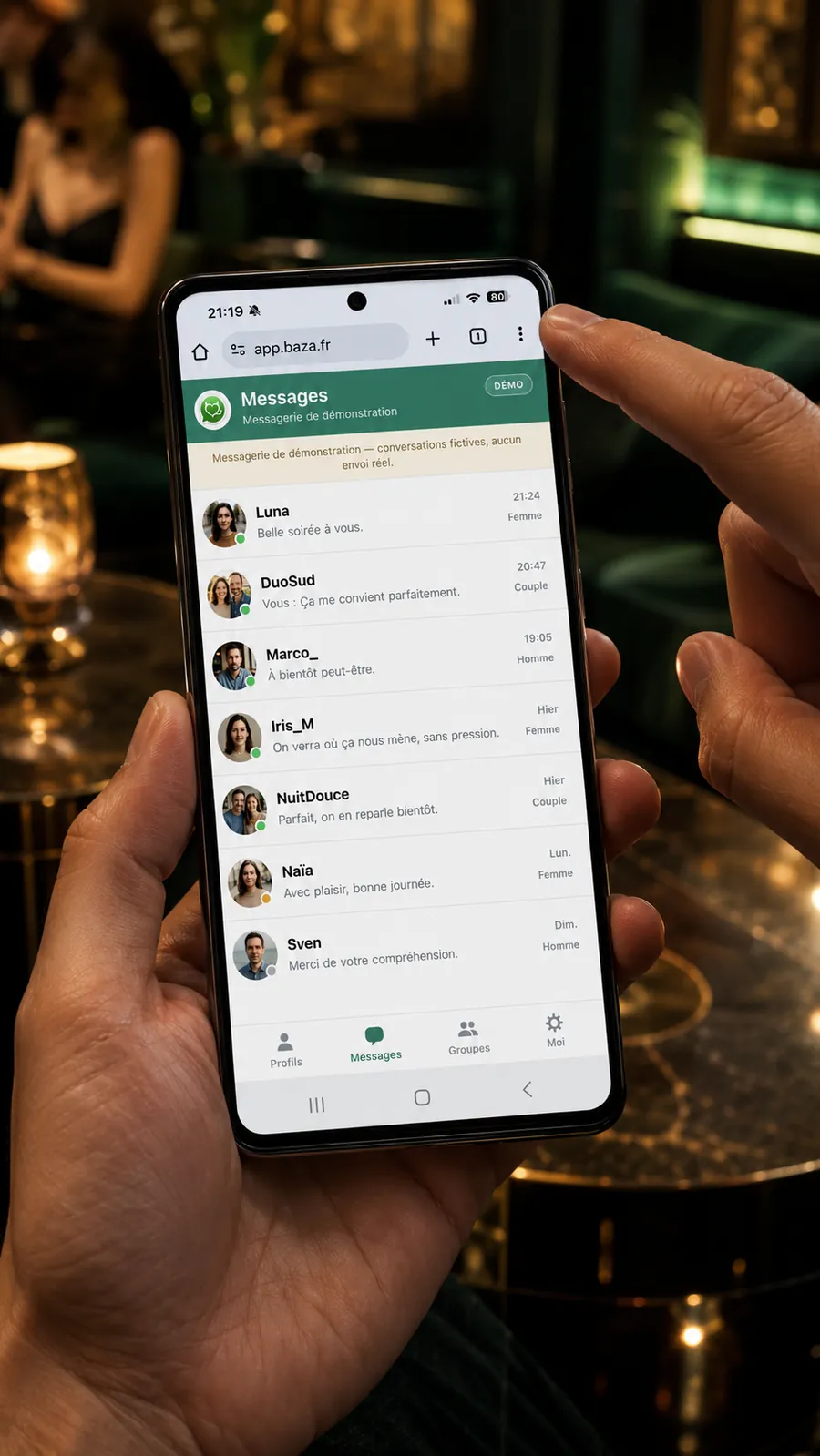
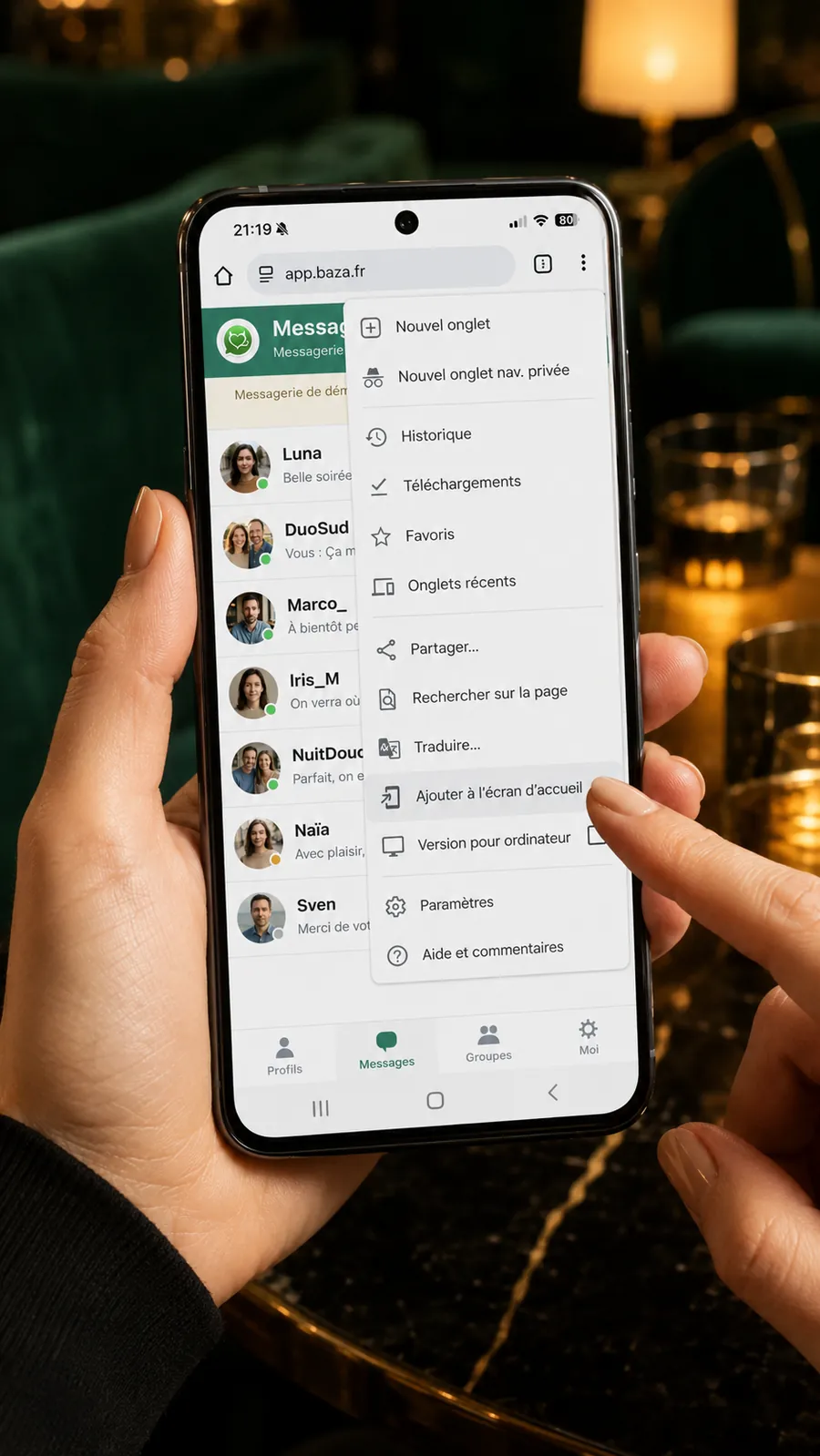
On an Android phone, the path goes through the Chrome menu:
- Open app.baza.fr in Chrome.
- Tap the menu icon (three dots) at the top right.
- Choose “Add to Home screen” — depending on your version of Chrome, the option may be called “Install app”.
- Confirm: the Baza icon appears on your home screen.
On Android, with Samsung Internet
On many Samsung phones, the default browser is Samsung Internet. The principle is the same as with Chrome, through its own menu:
- Open app.baza.fr in Samsung Internet.
- Tap the menu (the three lines at the bottom of the screen, or the three-dot icon).
- Choose “Add page to”, then “Home screen” — depending on the version, the option may be called “+ Add to” or appear as a + icon.
- Confirm: the Baza icon appears on your home screen, just as with Chrome.
Turning on notifications
With the official app installed from the App Store or from Google Play, notifications work straight away: open Baza and allow them when it offers.
In the browser, Baza must first be added to your home screen (see above), then opened from its icon: it is this “installed” version that can offer to turn on notifications.
When Baza offers it, allow notifications. Depending on your device and your system version, the wording differs — and this prompt may not appear everywhere yet.
- iPhone (App Store): open the app, then accept the iOS permission request.
- iPhone (Safari): add Baza to your home screen, open it from its icon, then allow notifications if the app offers it and accept the iOS request.
- Android (Chrome): open Baza from its icon once it has been added to your home screen, and allow notifications when Chrome or the app asks you.
- Android (Samsung Internet): add Baza through the ⋮ menu (“Add to Home screen” or the + icon), open it from its icon, then allow notifications if you are offered them.
- Nothing appears? Check the site permissions (notifications) in your browser settings.
What about on a computer?
On a computer, no installation is needed: open app.baza.fr in your browser and sign in. Your account is the same on all your devices — your conversations and your profile follow you.
Ready to meet people near you?
Baza installs from the App Store on iPhone and from Google Play on Android, and also opens in your browser: an account takes a few minutes to create. Your exact location is never shown and your conversations stay private.
Open the appService strictly reserved for adults (18 years old or over).